Partner Portal Guide
Complete guide to CashMyCell Partner Portal.
Upon a successful agreement and onboarding process, CashMyCell provides its partners with access to the Partner Portal. This portal serves as your centralized hub for viewing metrics and managing invoices.
In this guide, you will learn how to navigate the portal, utilize its features.
Partner Login
To access the portal, visit the official link: https://partner.cashmycell.com/.
Accessing your account is a secure OTP (One-Time Password) based process. Enter your registered Email address and click the Send OTP button. Check your email for the OTP, enter it in the Otp field, and click Verify OTP & Login to securely access your dashboard.
Dashboard Overview
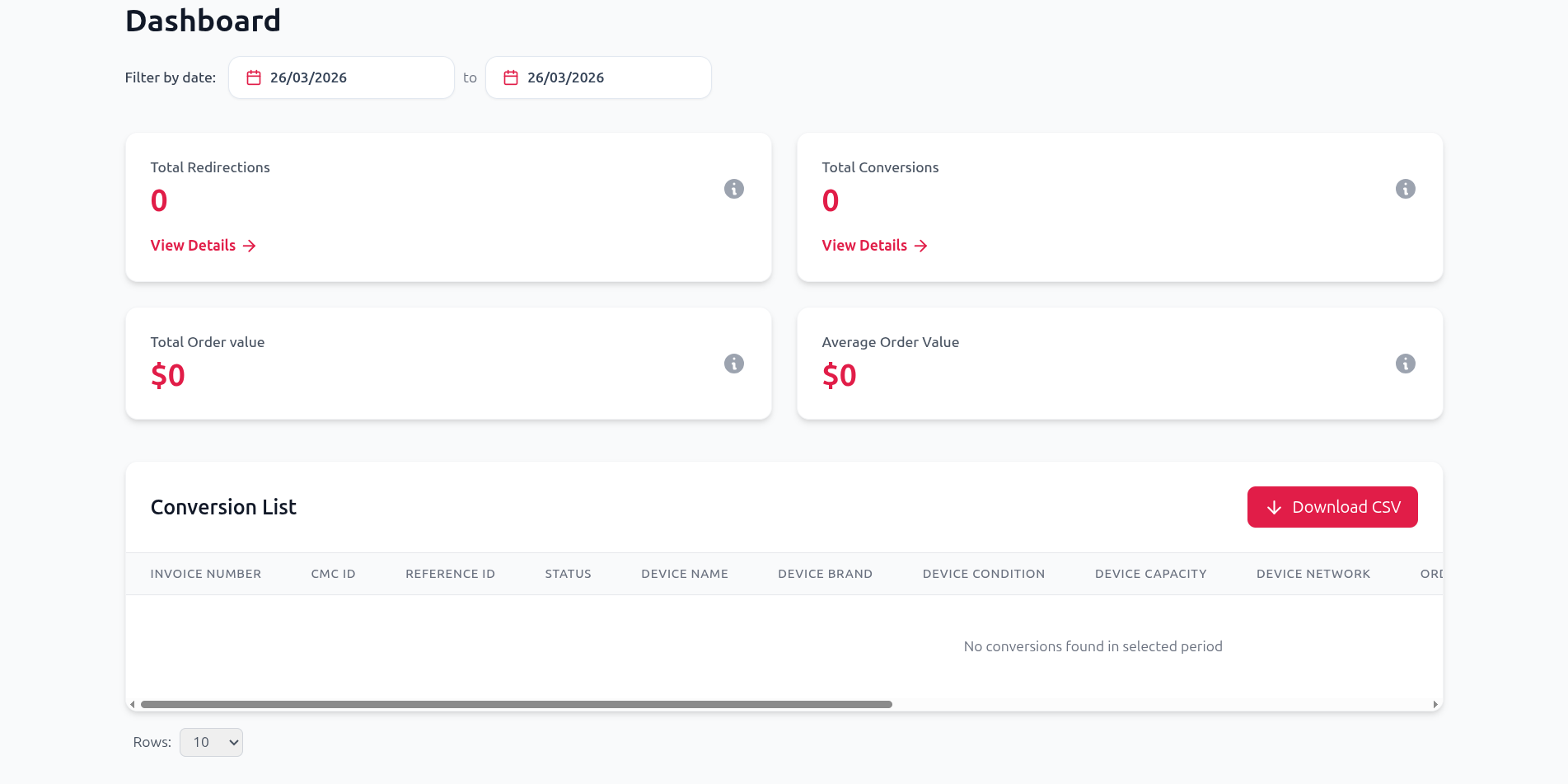
Upon logging in, you are greeted with the Dashboard, which gives a comprehensive overview of your performance metrics. The dashboard is divided into two main sections: the metrics overview and the conversion list.
- Global Date Filter: At the top of the dashboard, you will find the Filter by date (From and To) fields. This date selection applies to the entire portal, automatically filtering both the performance metrics and the conversion list to show data strictly for the selected period.
Performance Metrics Section
The top section presents key metrics in four summary cards:
- Total Redirections: Displays the total count of redirections. Clicking the red View Details button will navigate you to a new page showing a detailed breakdown of the redirection count by device brand, network, condition, and capacity.
- Total Conversions: Displays the total count of successful conversions. Clicking the red View Details button will navigate you to a new page showing a detailed breakdown of the conversion count by device brand, network, condition, and capacity.
- Total Order Value: Shows the overall monetary value of your orders. Hover over the info icon for more details.
- Average Order Value: Shows the average monetary value per order. Hover over the info icon for more details.
Conversion List Section
The bottom half of the dashboard contains the detailed Conversion List(Invoices) table.
- Download CSV: In the top right corner of the table section, click the red ↓ Download CSV button to download the table data for offline analysis or reporting.
- Data Columns: The table lists all conversions with columns INVOICE NUMBER, CMC ID, REFERENCE ID, STATUS, DEVICE NAME, DEVICE BRAND, DEVICE CONDITION, DEVICE CAPACITY, DEVICE NETWORK, ORDER VALUE, COMMISSION, COMMISSION RATE, COMMISSION CAP, IP, DATE, INVOICE FLAG, and ACTION.
Raising an Invoice Flag
If you encounter an issue with a specific invoice in the Conversion List, you can dispute it directly from the dashboard.
- INVOICE FLAG Column: This column displays the value of the flag raised and its acceptance status, formatted as
Flag Type (Status). - ACTION Column: In this column, you will find a Raise Flag option that allows you to dispute the invoice.
- Duplicate Invoice: Raise this flag if you are completely sure the appearing invoice is a duplicate.
- Not My Invoice: Raise this flag if you encounter an unknown invoice that does not belong to you.
Rules & Review Workflow:
- Limitations: A flag can only be raised once per invoice. It cannot be changed once submitted.
- Under Review: Upon raising a flag, its status immediately goes to
under review. - Admin Validation: CashMyCell admin will check the raised flag.
- If the flag is found to be valid, it will be
accepted. The table will reflect this update. - In case the flag is inappropriate or invalid, the status will go to
not_accepted.The table will reflect this update.
- If the flag is found to be valid, it will be